

Specialized LG Appliance Repair in San Francisco
Mon–Sat: 8:00 AM – 7:00 PM
When the app says an LG appliance is offline, the cause is usually the home network or a changed router setting. These steps cover what you can safely try.
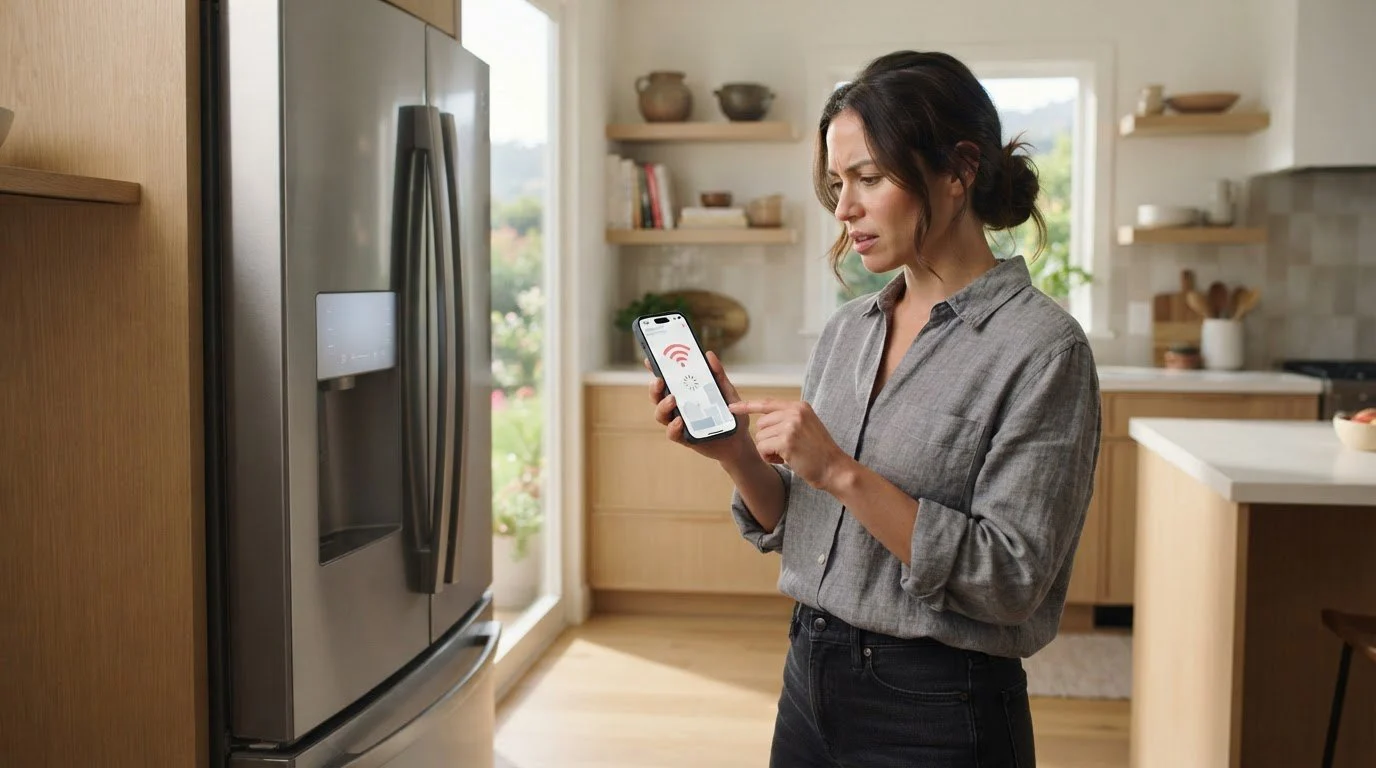
One morning the app shows a grey tile where your washer, refrigerator or oven used to be. Nothing is wrong with the cooking or washing, yet remote start, notifications and smart diagnosis are gone. The ThinQ connection is a conversation between three parties: the appliance, your home router and the app on your phone. When it breaks, the break is most often at the router or in a setting that changed.
The appliance has lost its link to your Wi-Fi, or the link exists but the app cannot reach it. The machine still works with its own controls. We never promise to fix a connection remotely; what we can do is help you sort the common causes at home and, if the appliance has a real Wi-Fi hardware fault, repair it in person.
A new router, a renamed network, a new password or a firmware update all make the old saved connection useless. Appliances remember the details they were given at setup and do not adapt on their own. After any router change, plan to reconnect each smart appliance.
Many home appliances connect on the 2.4 GHz band only. If your router combines 2.4 and 5 GHz into one network name, some devices struggle to join. Distance and walls matter too. Washers in a basement garage or refrigerators on the far side of a concrete wall in an older building can sit at the edge of coverage. A weak signal causes constant drops.
Strict security modes, a limit on connected devices, MAC filtering or a guest network with isolation can all block an appliance. Mesh systems that steer devices between nodes sometimes confuse small devices, which prefer to stay put.
An outdated app, a logged-out account or location permissions turned off on the phone can make a connected appliance look absent. Update the app and sign in again first, because it takes a minute.
After an outage, an appliance may boot before the router is ready and fail to join. Our guide to appliances that stay dead after a power cut covers the power side of that.
Do not open the appliance to look for the module, and do not use a repair app or tool from an unknown source to push settings to it.
If every other device connects, the app is current and the appliance still cannot join, it may have a faulty Wi-Fi module or a communication fault with its display. LG’s codes show this in different ways: on dryers, nE is a communication problem between control panel and the Wi-Fi module, and nF is a module fault; on refrigerators, Od is a Wi-Fi modem or display communication error. These codes need service, and the appliance usually works for its normal tasks in the meantime.
In rentals and multi-unit buildings, tenants often change internet providers without telling the owner. A new network name is the single most common cause of mass-offline appliances. If you manage several units, write down the connection details for each flat before the next appliance fails.
Book if you see a communication code, if the appliance misbehaves in other ways at the same time, or if you have tried a clean reconnect on a healthy network and still fail. We diagnose before any repair, explain the finding, give a written estimate and wait for your approval. Know your model number first; here is how to find it. For dryers, see LG dryer repair; for refrigerators, LG refrigerator repair. The full lineup is under appliances.
Passwords with unusual characters can be mistyped on a phone keyboard that autocorrects. Hidden networks have to be entered by exact name. A VPN or a privacy setting on the phone can block the local discovery that the setup process needs, so switch it off for a few minutes. If you use a network with a sign-in page, such as in some managed buildings, appliances cannot pass it and will stay offline. Ask the building to provide an ordinary home-style network for your unit.
Give the router a fixed spot with a clear line toward the appliance, avoid putting it inside a cabinet, and keep a note of the network name and password with your appliance papers. If you rename the network later, plan an afternoon to re-register every connected machine. Once the connection works, leave the Wi-Fi settings alone.
Yes. The connection only adds remote features. The machine uses its own controls as before.
Often that is the cleanest way after a router change. Follow the add-device steps in the app and your manual.
No. Reconnecting needs your network details and your phone. If the Wi-Fi hardware has failed, a technician diagnoses it during a visit.
Weak signal, a router that restarts itself, or a mesh system that moves devices around. Moving the router closer or adding a node can help.
The code means the control and the Wi-Fi module are not talking correctly. If a clean reboot does not clear it, plan a diagnosis.
Share a few details and we’ll confirm an appointment. Prefer to talk? Call us and we’ll help right away.